Welcome to SiteBlazer!
With SiteBlazer, you can create your website easily—even if you have no technical experience.
You can build a Portfolio website or an Online Store, all from one simple platform.
Create Your Website Using the Portfolio Option
A Portfolio website is best for individuals or professionals who want to show their work.
Step 1: Log In to Your Account
1. Open your browser.
2. Go to Blazers Accounts – Explore SiteBlazer.
3. Click Access SiteBlazer.
4. Click Create New Site.
Step 2: Choose Your Industry
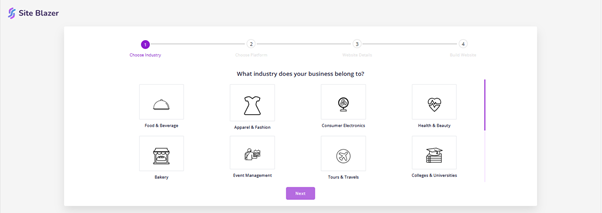
1. Select your business type from the list
(Example: Food and Beverage).
2. Click Next.
Step 3: Choose Platform
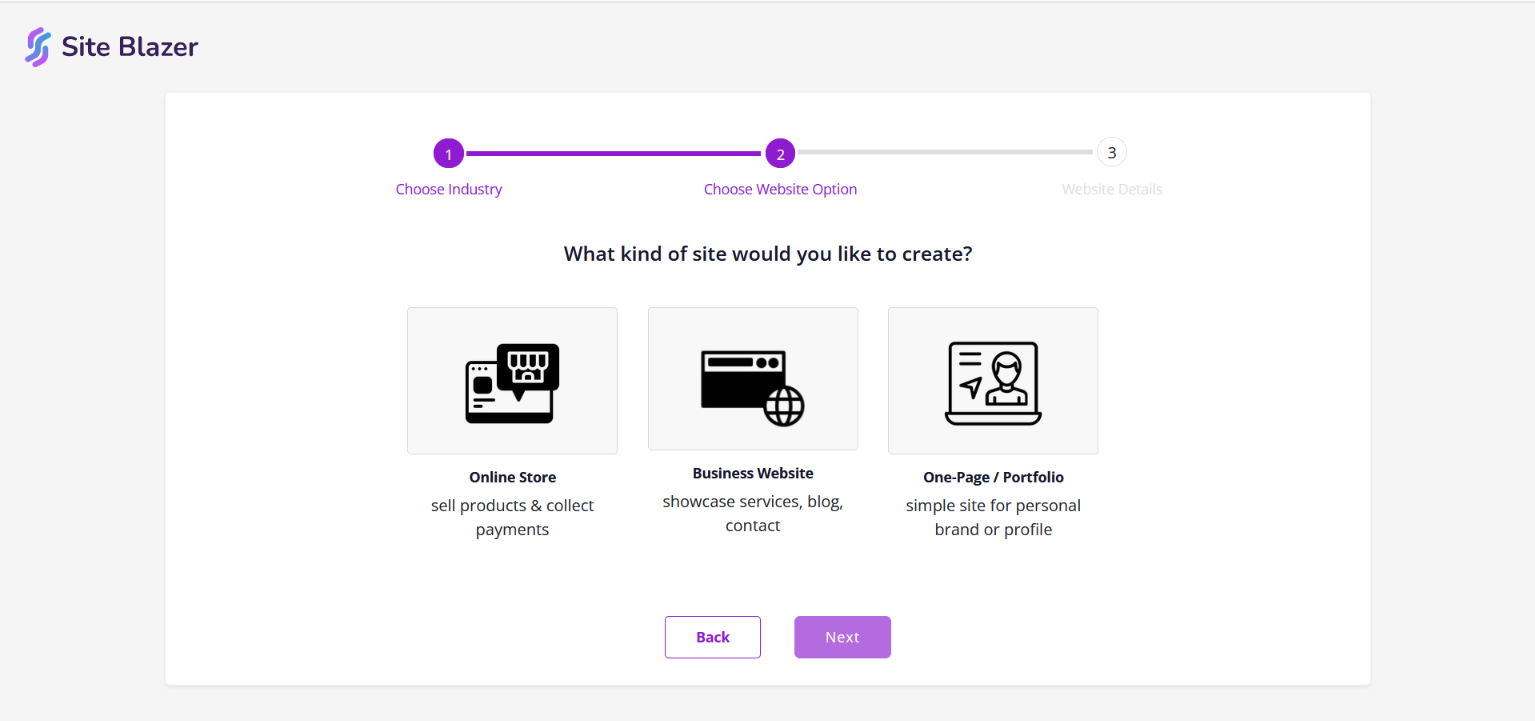
1. You will see three options:
o Online Store
o Business Website
o Portfolio
2. Select Portfolio.
Why choose Portfolio?
· Show your work and skills
· Attract clients or employers
· Build trust with past projects
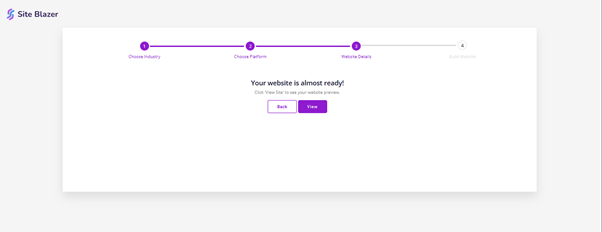
Step 4: Website Details
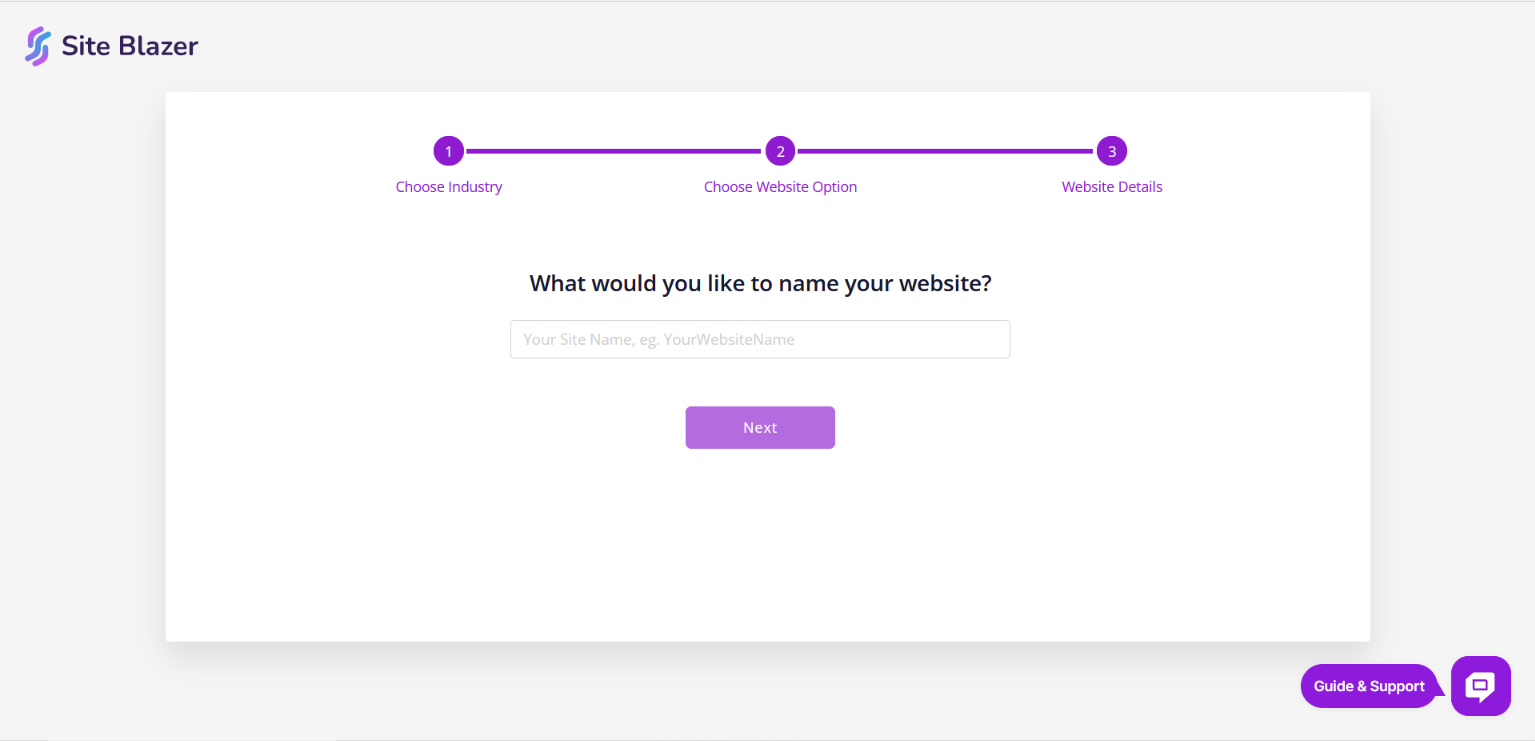
1. Enter your website name.
2. Upload your logo (optional).
o You can upload it now
o Or skip and add it later
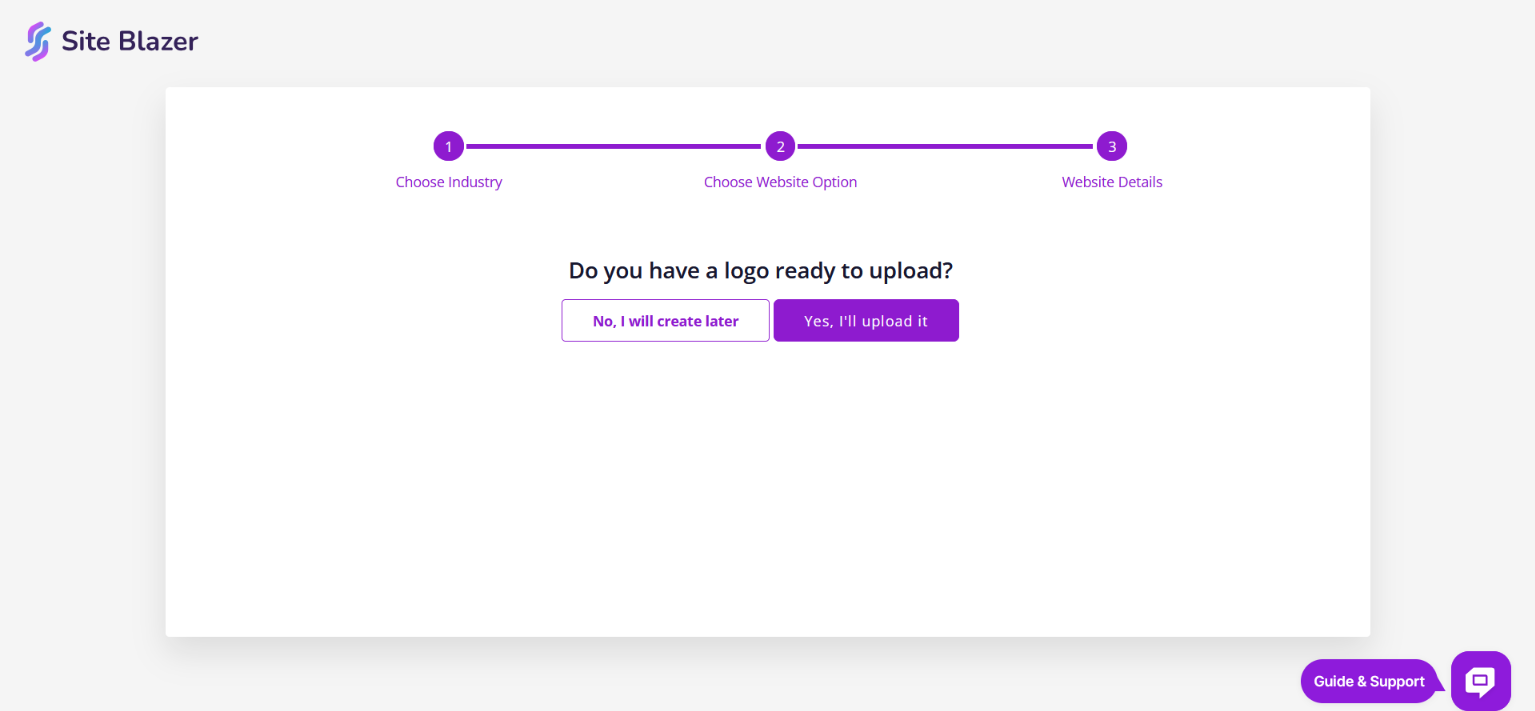 A draft website will be created for you.
Step 5: Build Website
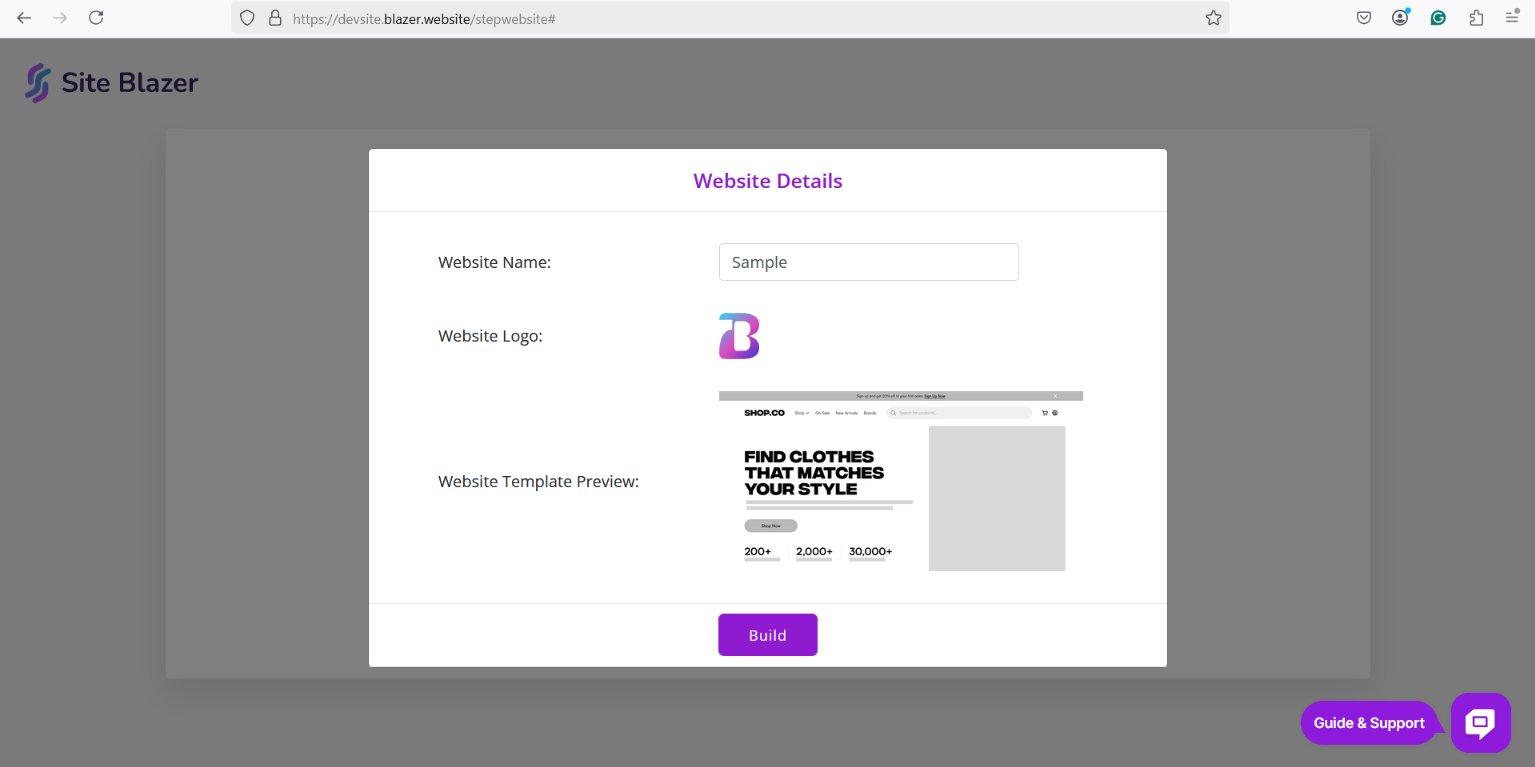
1. Click Build Website.
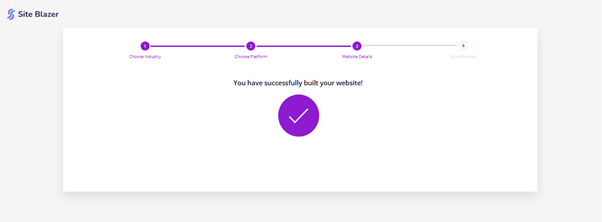
2. Your website will be created automatically.
3. Preview your website.
4. Publish it when you are ready.
Step 6: Customize Your Website
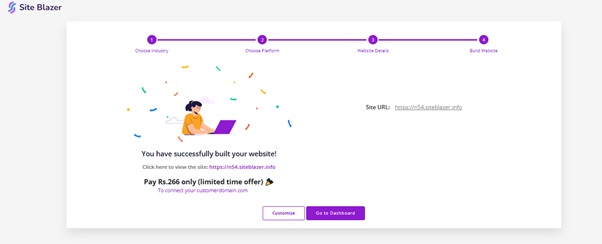
From your dashboard, you can:
· Edit text and images
· Change design and layout
· Update settings anytime
Create Your Website Using the Online Store Option
An Online Store is best if you want to sell products or services online.
Step 1: Log In to Your Account
1. Open your browser.
2. Go to Blazers Accounts – Explore SiteBlazer.
3. Click Access SiteBlazer.
4. Click Create New Site.
Step 2: Choose Your Industry
1. Select your business type
(Example: Food and Beverage).
2. Click Next.
Step 3: Choose Platform
& After selecting your business type, you’ll be taken to the next step to choose a website platform.
Our services include three website options—Online Store, Business Website, and Portfolio, and you need to select the Online Store option.
An online store is a website designed specifically to sell products or services directly to customers through the internet.
Purpose:
- To generate sales by showcasing products or services.
- To provide a seamless shopping experience with the cart and checkout.
Step 4: Website Details
1. Enter your website name.
2. Upload your logo (optional).
3. A draft website will be created.
Once done, a draft of your website is ready, and you can view it.
Step 5: Build Website
1. Click Build Website.
2. Your store will be generated automatically.
3. Preview and publish when ready.
Step 6: Customize Your Website
From your dashboard, you can:
· Edit pages
· Add or manage products
· Change design and settings
Need Help?
You are never alone
· Visit our Support Centre
· Use Live Chat from your dashboard
· Our team is always ready to help you
