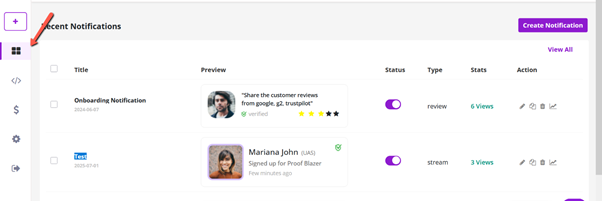
Show Customer Reviews on Your Website (Reviews Campaign)
This guide explains how to show real customer reviews on your website using Proof Blazer. Reviews help build trust and encourage visitors to take action.
Step 1: Install the Widget Code
First, install the Proof Blazer widget on your website.
Choose the guide based on your website type:
· For Shopify: Install Proof Blazer on Shopify
· For WordPress: Install Proof Blazer on WordPress
· For WooCommerce: Install Proof Blazer on WooCommerce
· For other websites: Install Proof Blazer on other Websites
Once installed, your website is ready to show notifications.
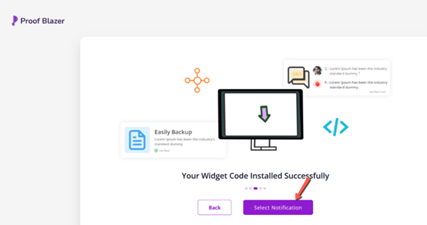
Step 2: Create a New Campaign
1. Go to your Proof Blazer Dashboard
2. Click Select Notification
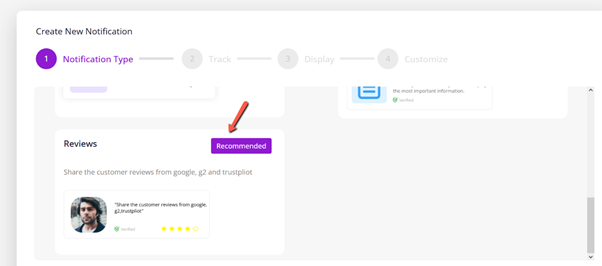
3. Choose Reviews Campaign
👉 This campaign shows real customer reviews on your website.
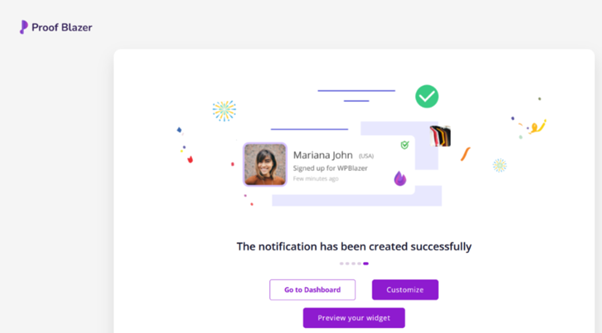
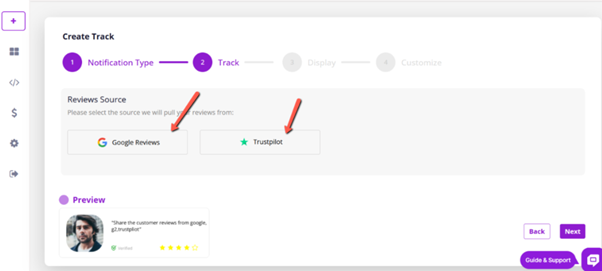
Step 3: Choose Review Source
Select where your reviews come from:
- Google Reviews
- Trustpilot
Proof Blazer will automatically fetch and display reviews from the selected platform.
-
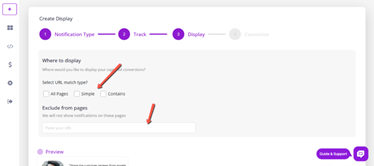
Step 4: Choose Where Reviews Appear
- Select the pages where you want reviews to show
(example: homepage, product pages) - You can also exclude pages where reviews should not appear
(example: login page, thank-you page)
This helps keep your website clean and professional.
- Select the pages where you want reviews to show
-
Step 5: Customize Review Appearance
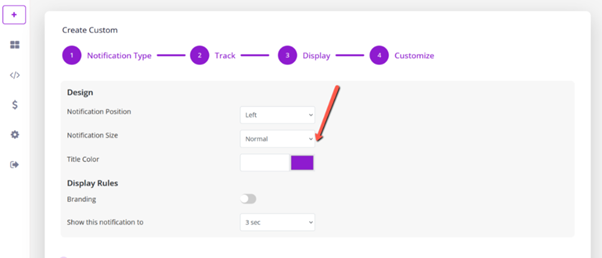
You can easily change how reviews look on your website:
- Position on screen (bottom left, top right, etc.)
- Size of the review box
- Text color and title style
- Show your logo or business name
- Control timing (how long reviews stay visible)
👉 These settings help match reviews with your brand design.
Step 6: Launch the Campaign
Once everything looks good:
- Click Launch
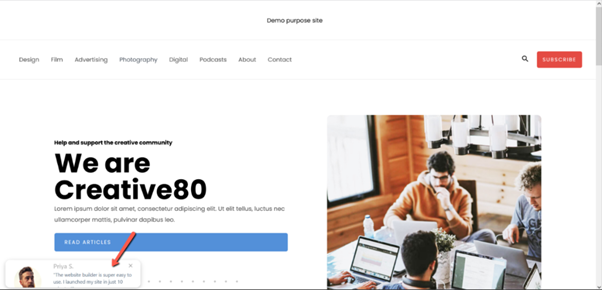
🎉 Your reviews are now live and visible to visitors!
Manage Your Campaign Anytime
From the Dashboard, you can:
- Edit campaigns
- Preview reviews
- View performance
- Create new campaigns