Connect Your YouTube Account to Social Blazer (Step by Step)
Step 1: Log in to Social Blazer
1. Open your browser and log in to your Social Blazer account.
2. After logging in, you will be taken to the Dashboard.
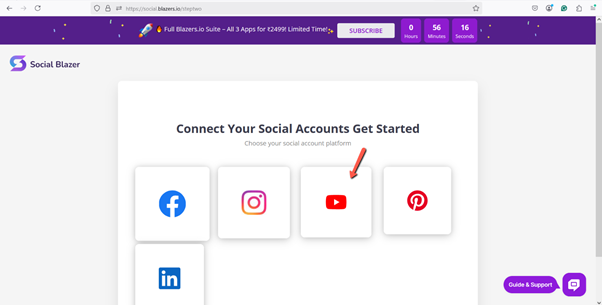
Step 2: Select YouTube
1. From the list of available social media platforms on the dashboard, click YouTube.
2. This will start the YouTube connection process.
Step 3: Sign in with Google
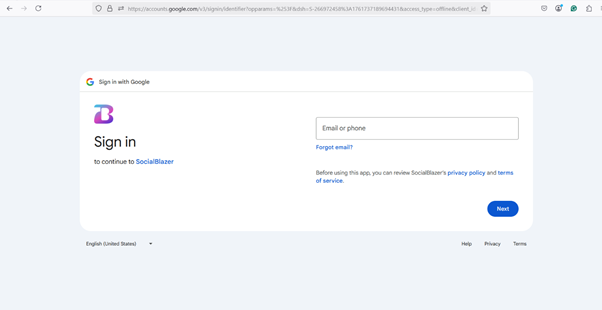
1. You will be redirected to the Google (Gmail) login page.
2. Enter your Google email ID and password.
3. Click Sign In.
4. Allow the required permissions to authorize the connection between YouTube and Social Blazer.
Step 4: Create a YouTube Channel (If Not Already Created)
· To continue, your Google account must have a YouTube Channel.
· If you do not already have one:
1. Follow the on-screen instructions to create a YouTube Channel.
2. Once the channel is created, return to the Social Blazer connection flow.
Step 5: Complete the Connection
1. After successful authorization, your YouTube account will be connected to Social Blazer.
2. You will see a confirmation message indicating that the connection was successful.
Step 6: Manage and Publish Content
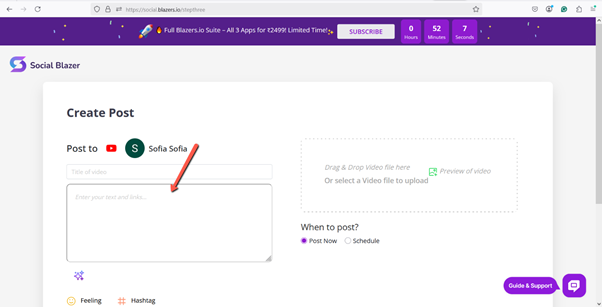
1. You will be redirected to a page where you can:
o Create and publish posts
o Manage your YouTube content
2. You can now handle your YouTube activities directly from the Social Blazer dashboard, all in one place.
✅ That’s it!
Your YouTube account is now successfully connected to Social Blazer.
